
For a while now, I’ve felt like I have a lot more free time than my friends and acquaintances. And yet, I still feel like I am incredibly productive. How is this possible? Mad skills? Superhuman intelligence? Maybe. But what I think it really comes down to is this – effective time management.
I think a lot of people don’t manage their time all that well. Many people probably don’t even realize it. If you could be more productive and have more free time to boot, wouldn’t you take that opportunity? Think of how much more Japanese you could study! Well, you could apply time management to any aspect of your life and use the benefits for any reason, but we’ll be focusing mostly on applying it to Japanese here. Let’s begin.
Time Blocking
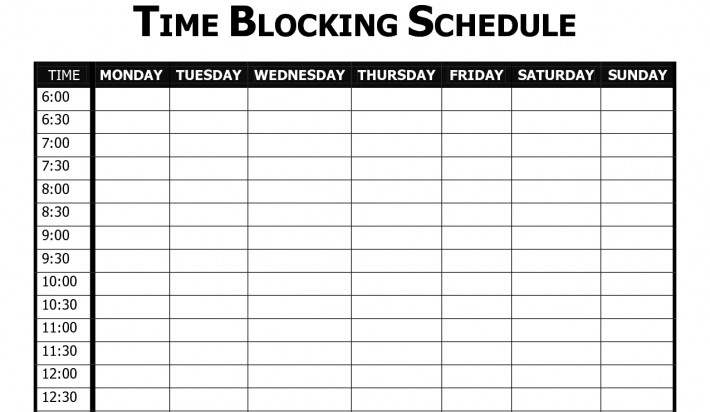
I wrote about it a little bit before, but scheduling my time/blocking off my time has been and still is a great help to me getting everything done that I want to get done. Currently, I don’t use this technique every day, but I used to.
Since I used to schedule my time every day, I got very used to blocking off time and effectively scheduling days in my head. I still use the technique, but mostly I use it now on the weekends or when I have a lot more to accomplish in one day than usual.
Basically the idea behind this is that when you plan out your day you can see all the things you have to get done and knowing what time to start and stop the activities keeps you on track and keeps you from getting distracted. See below for an example schedule of a week.
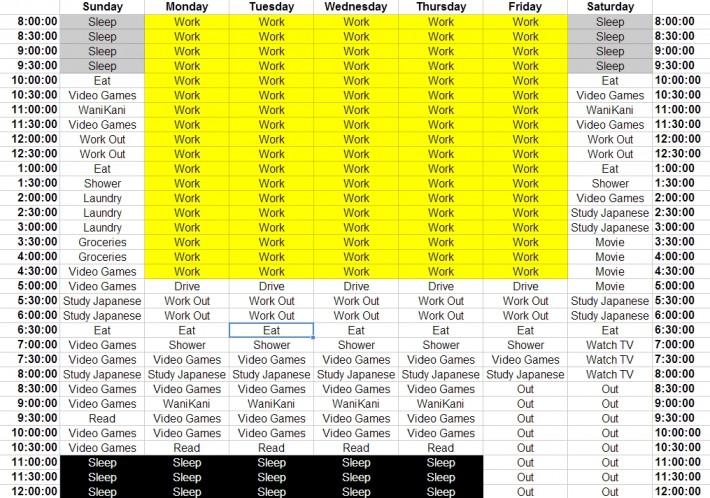
Knowing that you have to study Japanese from this time to this time every day develops a habit and keeps you on track. And since I schedule things in 30 minute blocks, I usually have 5-10 minutes of “free time” in between activities. I use this “free time” to check Facebook, emails, YouTube, whatever. It works for me.
I also try not to schedule anything for longer than an hour (unless it’s an activity out of the house, like going out with friends, seeing a movie, or something like that). For me, I feel that if I play a game or study or read for longer than an hour or so I start to enjoy it less.
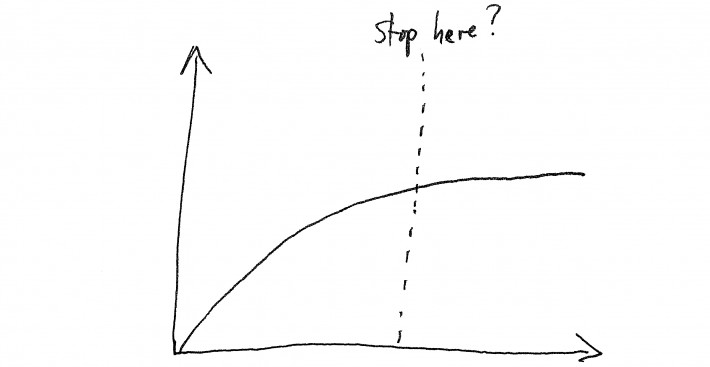
When I limit my activities to an hour or less and break them up with other activities, I find that I get more excited about coming back to said activity and really get more out of it in the end.
I have a full-time day job, I work for Tofugu, and I work out for about an hour every day. And yet, I still feel like I have plenty of time to play video games, read books, study Japanese, watch movies, hang out with friends, and catch up on Breaking Bad.
Don’t Put Things Off

Which brings me to my next point. If someone gives me really short notice on wanting to hang out some evening, going out to a party some night, or even an impromptu camping trip this weekend – most often I have no problem just going ahead and doing that. Why? Because I’ve already got most, if not all, of my things taken care of beforehand. Since I’m so productive every day, it’s relatively easy for me to make time for fun things and friends when they suddenly come up.
If I put everything off until the last minute all the time, I’d miss out. But since I schedule my time and spread my responsibilities out, I can afford to drop everything to do something fun. I know that I’ve already accomplished a lot that week and I know that I’ll be able to effectively manage my time to finish up anything remaining when I need to.
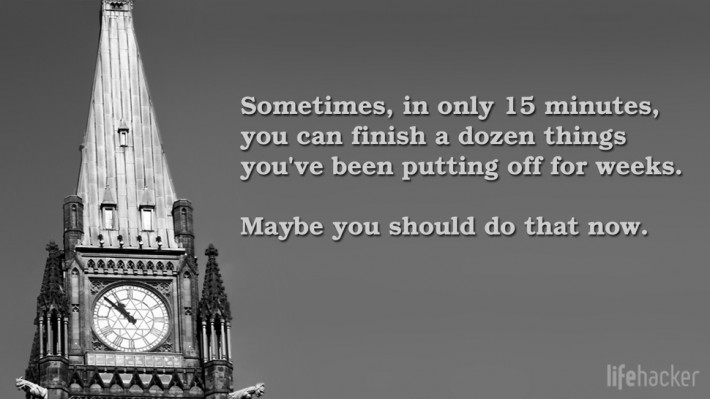
Of course, you can’t just drop everything all the time – otherwise you won’t get anything done! You need to learn to prioritize. You need to find that healthy balance between work and play. It is most definitely achievable. I think I’ve done it, and I know you can too.
Eliminate Waste and Prioritize
Are you aware of how much time you waste each day? If yes, stop doing those wasteful things. If you’re not aware of how much time you’re wasting every day, I’d recommend figuring out what those things are, and then getting rid of them.
Do you spend too much time on the internet? Surfing YouTube, Reddit, or Facebook? Do you really need to do those things? Are they that important to you? Well, maybe they are.
But if there are other things that are also important to you, then you need to prioritize. Have you ever heard someone say that “they didn’t have time” for something? Truth is, they had plenty of time for whatever it was, it just wasn’t a priority. You gotta prioritize.
If you find yourself lying in bed at the end of the day wishing that you’d studied more Japanese, feeling guilty about how you spent your time – do something about it. Would you feel guilty if you spent less time on Facebook or playing Candy Crush? No, probably not.

What things are most important for you to accomplish? If the three most important things for you are studying Japanese, playing video games, and hanging out with your significant other, make time for those things first. Put those things into your daily schedule first and then fill in the blanks with things of lesser importance around them.
If you do things each day that are important to you, you’ll feel more accomplished and less guilty for anything that you didn’t fit in come the end of the day. It’s a great feeling and it’s something I enjoy every day.
Consolidating

Another great way to save time is by doing two things at once. Do you drive to and from work or school? Do you exercise? Run? Cook? You could be doing other things at the same time. The first thing that comes to mind is passive Japanese study. I’ve touched on this a little bit before.
Let’s say in a normal day you drive to and from work and it takes you 15 minutes each way. Then in the evening you spend 30 minutes cooking dinner and another 30 minutes going for a run. If you just listened to Japanese (TV shows, audiobooks, language learning tapes) during that time, you’d have 1.5 hours of passive study taken care of that day without adding any extra time for it.

If you can find things like this during your day that you can effectively combine – you’re essentially putting more hours into your day. If you don’t consolidate time like in the previous paragraph’s example, you’d be spending a full 1.5 hours of your precious evening studying Japanese when you didn’t have to.
Of course when you consolidate, it’s important to do it intelligently. Passively studying Japanese while driving to and from work is a smart idea. Reading a book while you are driving is not. It’s up to you to determine what activities of yours make the most sense to consolidate without sacrificing anything (efficiency, safety, etc).
Assignment

So here’s what I want you to try. Like I said, if you already know what you do that isn’t productive – stop doing those things or at least do them less. That’s a good start. If you don’t know (and even if you think you do, you might be surprised), it might be a good idea to record how you spend your time one day, or even a handful of days to get a better feel for how you actually spend your time in a given week.
Record what time you wake up, how long you take for breakfast, shower, school, work, games, studies, etc. Basically just make a schedule like I talked about before, except you’re just using it to record your day. Then when the day is over, you can look back at everything you did and exactly how much time you spent doing things.

For some of you, this might be a real eye opener. You might not have realized that you spend 2 hours each day just farting around on the internet not actually accomplishing anything. You might not have realized that over a full week you spend less time studying Japanese than you spend bathing. Who knows? It’s worth taking the time to find out.
Once you have a good idea of how much time you actually spend on everything, you can see where cuts can be made. You can see what activities can be consolidated. Do you really need to spend 2 hours on Facebook each day? Of course not. Allocate an hour of that to studying Japanese, 30 minutes of that to playing video games, and the other 30 minutes can still be used for Facebook. Or something. Do what you need to do. Prioritize and organize your life.

After you do this, just try and schedule one day. At least one day – a week if you can, just to see how much more productive you really can be. I usually schedule my day in the morning or shortly after getting back from work, but do what works for you. If you feel more productive and accomplished by the end of the week/day, you’ll know that it’s working.
How many hours of Japanese do you want to study each week? Schedule that many blocked hours into your week and stick to it. It’s all laid out in front of you and at specific times. If you miss one block, reschedule it for later. If your initial goal is too much or too little, adjust it until you’re comfortable. This is your personal schedule, so you’re in total control here.
Stay Positive

A lot of this comes down to your attitude too. If you’re positive and open minded about things, it’s a lot easier to be motivated. This kind of fits in with the “Assignment” section, but I’m making this its own header to really drive home how important I think this is.
I’ve read a lot of books that have reinforced my positive attitude and really motivated me. The most recent book I’ve read about positive thinking was “As A Man Thinketh” by James Allen. It was first published in 1902, but it’s not difficult to read at all. It’s only about 60 pages long and it’s a super easy read. I really enjoyed it, and I think anyone could get something out of it.
All that you accomplish or fail to accomplish with your life is the direct result of your thoughts.
As in the rankest soil the most beautiful flowers are grown, so in the dark soil of poverty the choicest flowers of humanity have developed and bloomed.
Men are anxious to improve their circumstances, but are unwilling to improve themselves; they therefore remain bound.
So if you have some free time – read this book. Seriously. It’s such a short book and you can read it for free online. There’s no reason not to check it out. Maybe you won’t like it as much as I did, but I really hope that you do. It really gets you pumped and inspired about everything. Your attitude towards life is incredibly important.
It’s Not For Everyone
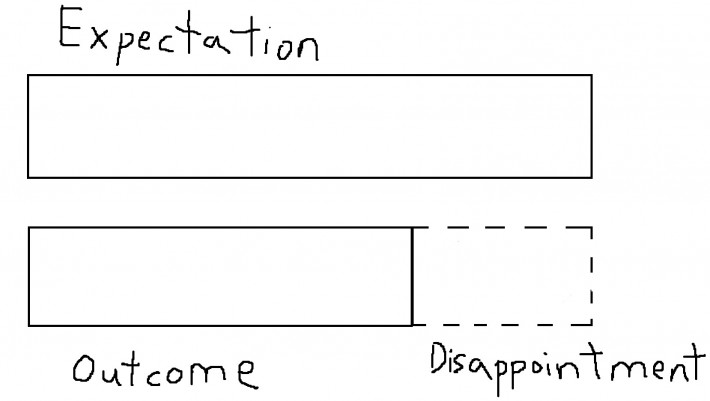
Now, I know scheduling your life is not for everyone. I know some people who are diametrically opposed to blocking off time every day or doing anything similar to what I do. That’s fine. I understand. But if you want to get more out of every day and really feel accomplished each night when you go to bed, I think trying to incorporate some if not all of these ideas would be a great help.
And it’s not like the daily schedules are carved in stone. You’re the one making these schedules for yourself. You can change them. You can adjust them. It’s all up to you. If you possess self-control and discipline, you can accomplish everything you need to do and still have the time and flexibility to live your life. If I can do it, you can too.
Part II by Koichi
When he was drafting his post above, I sent him my own list of productivity things that I wrote up previously for the summer interns to teach them about life, the universe, and everything. Turns out, John already had a big enough list, and had no need for my “crazy blabberings” and “hobo talk,” so he then suggested I write my own followup version. So here we are.
I won’t really cover the same things as he did, but read my recap of his advice down below (with commentary).
Recap Of John’s Productivity Post
Just a quick list with some commentary that is my own.
- Time Blocking Schedule: I love time blocking. I don’t do it to nearly the same extent as John, but I do time block “hard to deal with repetitive tasks” (also known as “emails”). In a day I usually only have 1-2 hours time blocked, and the rest of the time is free to do the things I’ve deemed most important of the day (more on that later).
- Don’t Put Things Off: I am so bad at this. Good advice, though.
- Eliminate Waste and Prioritize: I like this, and I think it relates to time boxing in a way. It also allows you to appreciate everything just a little bit more.
- Consolidating: Some good stuff here. I’d add "make it a tradition" as well.
Alright, now to move on to my own personal list life efficiency. Let’s start with one that will help you to waste less time reading all these time-wasting Tofugu articles.
Read Faster:
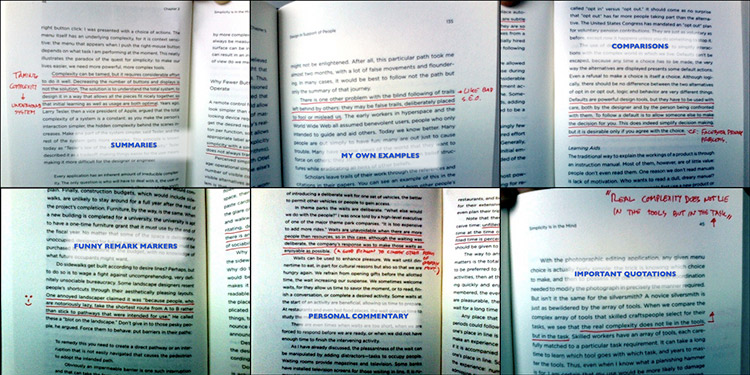
The trick here is to get faster at reading while not losing retention. In college, being a liberal arts major unprepared for the real world, I at least had to learn to do one thing right: read. Reading is great and fun and educational, but it takes a friggin’ long time especially when your teacher wants you to read a novel a night. One thing I wished that I had done was learn to speed read… or at the very least, read much faster.
While I haven’t put in the effort to truly speed read (I’m a pretty slow reader compared to others, to be honest) I’m now a lot faster than I was previously. The problem is that people tend to reach a point where their reading speed is “good enough” and once they hit that point they never feel the need to get faster. It’s painful to try to read faster than you’re used to, in fact, so you actually have to work hard at it, kind of like when you were a child learning to read for the first time. Just imagine, though: think of all the articles, book pages, etc., that you read right now. What if you could read them 3x as fast? What if you could read them 10x as fast? You’d have a lot more time. Or, you’d be able to read a lot more. Either is great in my opinion.
To get started with speed reading, this article is a good place to begin: Scientific Speed Reading: How to Read 300% Faster in 20 Minutes
Type Faster

While you’re learning to read faster, you should learn to write faster too. Since most writing happens on keyboards nowadays, learning to type faster makes a lot of sense. Yet (just like with reading) people get to a point where they’re “good enough” at typing and then just stop getting better. If you don’t purposely push yourself to type faster (and make typing mistakes while you do it) you’ll never get faster at typing. It’s uncomfortable but it’s going to save you a lot of time in the long run. A few minutes saved a day (or maybe a lot more) over many years will gain you a lot of productive time… or at the very least give you more time to rest. No matter what, learning to type faster is something great you can do for your productivity.
First, you should see how fast you can type. Now you have a number to measure and work off of when you get started. Here are some possible options:
- Just make yourself type faster: If you consciously try to type faster you’ll type a little faster. You’ll also start to make mistakes with your typing, but this is good. Take note of one or two mistakes you make often when you’re typing faster than normal (maybe you type “ofc ourse” instead of “of course” consistently) and then focus on fixing that one thing. Continue pushing yourself to type faster and fix one of the errors. Once that is comfortable, either push yourself to type even faster or move to another common error you have to fix. Whatever you do, the main thing is that you focus on typing faster than you’re comfortable with. Uncomfortable = good in this situation.
- Play typing games: I find this typing game by Notch (Minecraft creator) to be particularly challenging. There are many more out there. Main thing is to be sure you’re able to measure your speed and improvement over time. Put it in a spreadsheet to keep track of the data and see your progression. If you’re not making any, you should probably change something.
- Try other keyboard layouts: While this may be more work than it’s worth, I’ve dabbled in this once or twice but never really got into it. Some people find a lot of success moving away from the traditional keyboard layout (which isn’t good for typing, but good for preventing typewriters from getting stuck). The best and most common alternative method is the Dvorak Simplified Keyboard. It’s supposed to help with wrist pain and hand cramps as well, I hear. Problem is that you’re learning a completely new way to type, so expect a lot of growing pains if you try it.
The overall lesson here is that you should consciously try to get better at typing. Even if you’re an adult and no longer “learning to type” it’s a really helpful thing that for some reason people don’t realize that they can do. I’m at around 100wpm right now, and I’ve grown “comfortable” with it. I imagine I could get this up a bit higher if I actually tried but I’m stuck at that “good enough” stage right now. Maybe I will force myself to type faster now that I’ve written this article. 50% more words in the same amount of time sounds really nice, actually.
Shortcut Keys Galore

This sort of has to do with typing faster but in a different way. The gist is this: The more shortcut keys you’re fluent in, the more you’ll be able to get done in a shorter amount of time. Keep your hands on the keyboard and away from your mouse. A mouse feels faster, but it’s not. Most things have a keyboard equivalent, and every time you can use the keyboard and not reach for your mouse, move it, and then click, you’re saving a few seconds. Depending on how much you use your mouse, you may be saving yourself a lot of time over your lifetime.
Computer Shortcuts
The most basic kind of shortcut is your operating system’s keyboard shortcuts. Basics like ctrl+c, ctrl+v, and ctrl+s are just icing on the cake (cmd if you’re a Mac user, of course). There are a ton more worth learning as well. For some tasks I feel like a modern, less talented version of Franz Liszt. I think I would be the next great pianist if I played piano as much as I type. Oh well.
It wasn’t always this way for me, though. I thought keyboard shortcuts ended at the basics. Little did I realize that there was a keyboard shortcut for just about everything. When you run out of these, you can install applications that allow you to expand your ability to use shortcut keys. It’s a deep rabbit hole indeed.
One way to get better at using shortcut keys is to make it harder to use your mouse. You could put your mouse far away from you, forcing yourself to go get it, plug it in, and then put it back away from you when you’re done. Or, you could change the settings on your computer to disallow using your trackpad, if you have one. Basic idea is that if you make it harder to use your mouse than it is to not use your mouse, you’ll learn how to use your keyboard. If you don’t know how to do something, look it up (using shortcuts, of course). After a few days or a week of this, you’ll be a shortcut key master.
Just a warning: doing this will hurt productivity a ton for a while.
Quicksilver / Alfred
One way to increase the number of things you can do with just your keyboard is to install something like Quicksilver or Alfred (there are Windows alternatives out there as well, I believe). This allows you to set up a shortcut to open an application that lets you type in something to perform an action.
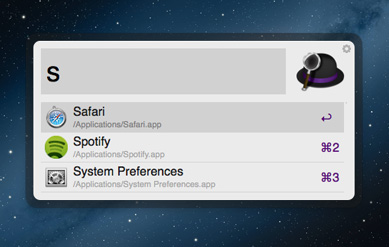
For example, I type in cmd+spacebar and Alfred opens up. Then, I can type in an application name to open it, control iTunes, quick search the web, make calculations, put my computer to sleep, open documents, get access to my passwords from 1Password, send an email, and much, much, much more, all from a few keystrokes. Combine that with the ability to type fast and you’ll be getting things done in no time.
Seriously, this app is probably one of my favorite things ever and I still probably only use 10% of its features.
TextExpander
Speaking of most favorite things ever, I talked about this application on BoingBoing’s podcast, Gweek, and absolutely love it. The premise is this: You can assign an abbreviation to something that you type a lot, and whenever you type it somewhere on your computer Textexpander knows notices this and expands it to the “full version” for you. For example, you could create the abbreviation “//sig” that spits out your email / forum signature. You are typing in five characters instead of 100. That’s a great trade, productivity-wise.
It only starts there, though. Maybe you’re a programmer and have a snippet of code you type a lot. Or, maybe you’re writing mnemonics for WaniKani and have to write the same thing over and over again for certain vocabulary / kanji / etc. Or better yet, maybe you have to write similar email responses to the same kinds of questions over and over again (I’m looking at you people who keep emailing me to ask why さ/ち/ふ/そ/etc is written in different ways). The possibilities really are endless. Go take a look at examples of people’s TextExpander workflows to gain some inspiration. My favorite thing is to add kaomoji to TextExpander whenever I can.
(ノಠ益ಠ)ノ彡┻━┻ (when I type //ktable this appears!)
After a month or two, take a look at your statistics. I save around 10 hours a month using TextExpander (based on typing speed and characters saved). I could probably save a lot more if I added more email-related abbreviations. That’s a lot of real time saved, though. TextExpander is really, really amazing.
Take Naps
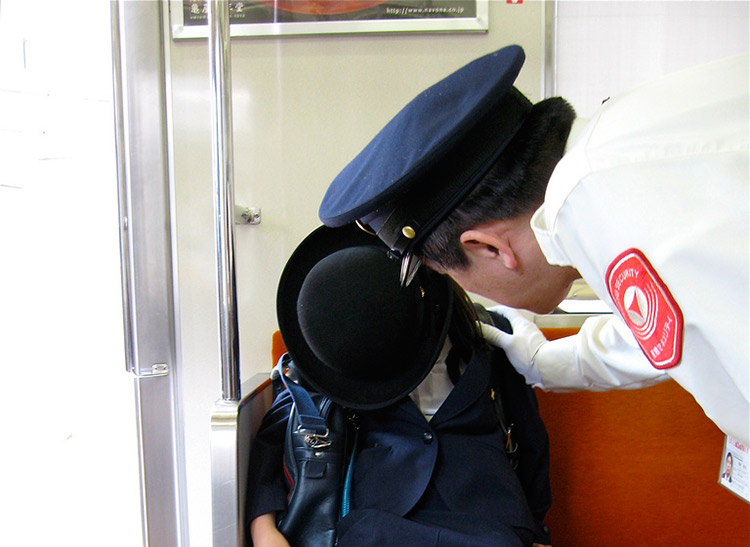
If there’s one thing that helps me with productivity, it’s to take a nap. I could sit around not really getting anything done for two hours or I could take a 20-30 minute nap and get a lot done in the remaining hour and a half. Just be sure to never go beyond the 30 minute mark or you’ll feel groggy. 20 is even better, I think.
While you’re at it, get enough sleep at night. While there was a time when I thought sleep was a waste of time (oh to be young again), getting enough sleep really does help a lot. Use an eye cover for better sleep and make sure your room is cold, if possible. You’ll feel better for it and get more done overall.
Organization & To-dos
To stay productive, it really does help to be organized. That being said, there are different ways to be organized. For me, I just try to put everything someplace that’s searchable. Once it’s in that magic place I can forget and not worry about it anymore. It’s there if I need it. This way, I can keep the “important” things in my brain simple and I find myself getting way less distracted. In general, here’s how I do it, though it won’t be the best way for everyone.
Evernote

We’ve mentioned Evernote quite a bit on Tofugu. It’s obvious we love the application and use it for a lot of things, including organization. Anything I don’t want to forget I put into here, from pics of bottles of wine I liked, to gifs I use (I have a whole gif notebook, sadly), to Tofugu company docs (we use Evernote for Business as well), to trip itineraries, to things I’m studying, to shopping lists, to articles I want to save, to pics of my kendo notes after every practice, to run on sentences like this one… Main purpose is to get these things out of my head and somewhere safe. I can access them on the web, on my phone, or on my computer. It even takes my text notes and makes them searchable. I have an offline version of everything as well. Now I don’t need to worry about all the little things. I just put it in Evernote and forget about it until I need to remember again.
To-Do Lists
I don’t really use to-do lists like most people. My to-do lists tend to be very disposable and short. I’ve gone back and forth on how to use to-do lists though, and this is the method I’ve found to be most productive (for me).
- At the end of each day, write your to-do list for the next day. Only one day, not any longer.
- To-do list should contain only a few things at the most. 2-3 is usually good. If you finish that list, you feel good and then can work on something else (or not feel guilty stopping for the day, maybe).
- At the end of the day, throw away your to-do list (or delete it). I actually hand write my list out on small pieces of paper. It’s one of the few things I hand write these days. Post-it notes are good due to their small size as it forces you to not write too many things down.
- When it’s the end of your day write your to-do list for the next day. Rinse and repeat.
That’s how my to-do list method goes. It prevents your lists from getting too long (and eventually demoralizing and impossible to complete). As for other long-term things I want to “do” — I put them into Evernote as “ideas.” They’re not “to-dos” this way, which makes me feel less distracted. Occasionally I’ll go through them and pull the things that are applicable to the moment. The more to-dos you have the more that’s on your mind and the less you’re able to focus. Lack of focus = lack of productivity. I think it’s important to keep things simple.
30-30 Method
This method is very nice if you’re feeling particularly unproductive or unmotivated. Idea is simple: Just work for 30 minutes and play for 30 minutes. Forcing yourself to play after 30 minutes makes you want to work (reverse psychology on yourself!). Plus, it makes you focus during those 30 minutes that you’re working, and a focused 30 minutes is better than an unfocused two hours, in my opinion. Important thing here is to stay strict on yourself (you must play the 30 minutes for this to work) and make adjustments where necessary (maybe you’d be better with the 10-10 method or the 60-60 method). Figure out what works for you, though I recommend starting with 30-30 as it seems to work for the most people and gives you enough time to actually do something, but not so much that tasks get big and unwieldy.
Automation
And, if the methods above weren’t efficient enough for you, here’s the most efficient thing of all: automation. With automation, once everything’s all set up you don’t have to do anything. You just sit back, relax, and watch your world spin. The more you can automate the more time you’ll have for something less soul sucking. How nice!
Gmail Filters
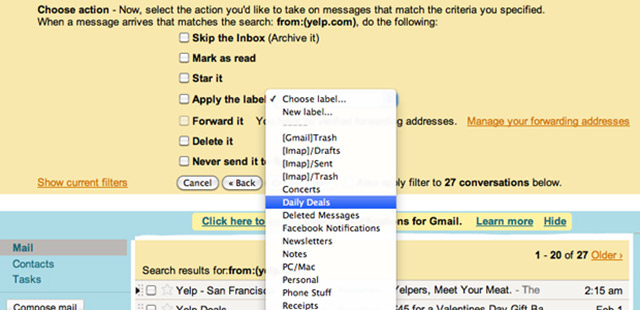
I can barely keep up with emails as it is, so this is an absolute must for me. Basically, anything that isn’t from a person sending something directly to me gets filtered using Gmail’s “filters” feature. Is it a Tofugu Twitter notification? Automatically get it out of the inbox and into the "Tofugu Twitter" label so I can look at them at my leisure some other time. Is it a mailing list I haven’t been able to unsubscribe from (I’m looking at you, Gamestop / JCrew)? Automatically delete it and mark it as spam, please! Is it from a relative, friend, or someone that I deem important in my life? Better star it and mark it as important so it goes to the top of my email list.
One neat thing I did with filters before I went to Taiwan / Japan / other places last month was to set up an auto-responder that would respond to anyone not on the “secret list” telling them that I was on vacation and that they should email the support Tofugu/TextFugu/WaniKani email address instead, because their email just got archived and I wouldn’t be reading it. Then, just like the threat explained, their email was archived and I didn’t feel bad about not reading it. True vacation! Now, I hate vacation responders as much as the next person, but I can tell you that this felt really, really good to do. Depending on how things go the next couple weeks this may become a permanent feature in my inbox :p It has saved me a ton of time, and would allow me to focus more.
Learn about and use Gmail filters if you’re not already. It will make your life so much more worth living.
Boomerang
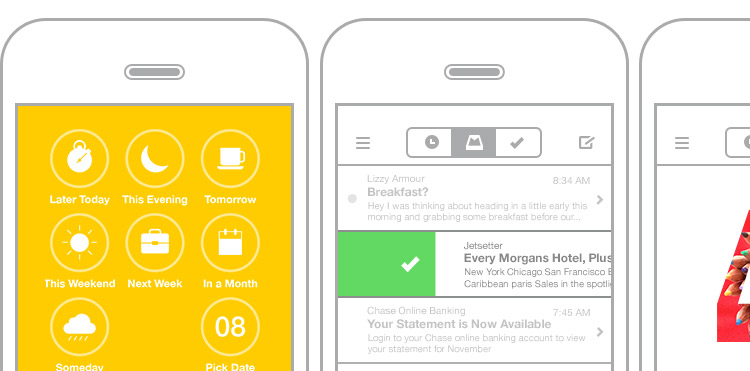
Speaking of emails, there’s a couple of other things I do in order to stay sane. Boomerang is something you can install on your Gmail inbox that let’s you do a few things. First, it can hide emails when you don’t want to see them and then makes them reappear when you do. Second (and the feature I like the best) you can schedule when your written emails get sent out. For example, even though I’m writing my emails every day from 12p-1p (time boxing!), I can have some of those emails send at 2am the following morning. I find that if I do this, I have fewer people responding right away and I can get to inbox zero a lot more easily. This helps me to stay on task and focused.
IFTTT
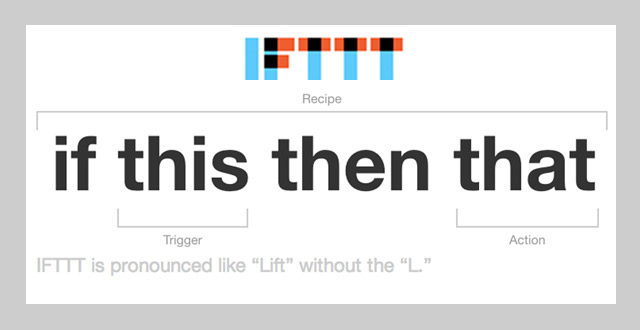
IFTTT (If This Then That) is a fun and useful web app that lets you automate the internet to your benefit (or amusement). Here’s some examples of things I do myself, using IFTTT (though there’s so much more you can do, personalized to your wants and needs).
- If it’s the day before a payday day, I get a text message reminding me to pay people their hard earned Fugu Dollars (what Tofugu employees are compensated in).
- If I post an image on Instagram, I automatically back it up to Dropbox.
- If I post something to Instagram, it will automatically get posted on the Koichi Facebook Page, which is nice because Instagram only lets you associate one Facebook thing to your Instagram account.
- If I post something to Instagram, it automatically emails the photo and subtitle to my mom, who doesn’t use Facebook or Instagram, but does use email. Here’s another picture of a kaiju, mom!
- If I favorite a tweet, it gets saved to Evernote.
- If I go somewhere on Foursquare, it gets added to my UP stream so I have a better idea of why my walk data spiked (or didn’t spike).
- If I add a contact to my phone, it gets backed up to a Google Spreadsheet.
- If I’m tagged in a photo on Facebook it gets downloaded to Dropbox.
There’s an amazingly large amount of other automated tasks you can run using IFTTT, but these are some of the ones that I like for myself. You can see how a lot of these tasks save me time (or just do things I wouldn’t normally do, automatically). You can browse a ton of “recipes” on the site as well to find out what others are doing.
Fancy Hands, Mechanical Turk, Task Rabbit, And More
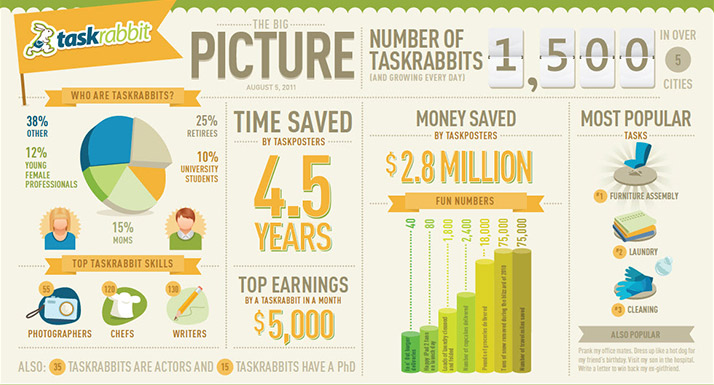
This is the one section that I don’t really do myself but really want to get into. Automation via other people’s time in exchange for your $$$ seems like a nice enough trade, though it’s going to take me a little getting used to when I finally do get around to it. I have “issues” with letting other people do things for me sometimes…
Fancy Hands
I have a friend who uses this a lot, and I’ve seen the time-savings in action. One day he had them call Comcast (ugghhh) and cancel his old account since he just moved. They told Comcast all the info they could, then put Comcast on hold (ha!) and called my friend to get the last details that they needed to get the account canceled. Then they went back to the Comast call to get everything closed out and canceled. My friend didn’t have to wait on hold, didn’t have to talk to Comcast, and only had to answer a couple quick questions for the Fancy Hands representative. Usually they don’t call you at all, though this time some specific information was needed.
You can have them do any task that takes around 15 minutes to complete, and depending on your plan you have 5, 25, or more tasks at your disposal. Essentially it’s around $5/task, which isn’t all that bad of a trade to me. If I get an extra 1:15 per month for $25 that’s a trade I’d be willing to make. It gets more economical the more you are able to use it. Plus, the ability to not have to talk to Comcast’s BS is priceless. HOW DO YOU PUT A VALUE ON THAT?
Mechanical Turk
I’ve used Mechanical Turk a little bit in the past, mostly to transcribe audio to text. It’s useful for repetitive tasks that you can’t automate using a computer (though that’s becoming less and less common these days). The best part is you can break up spreadsheets into many tasks that many people do. For example, maybe you have a lot of pictures that you want to sort through. You need to know if there is a person in each picture. Put them all in a spreadsheet and have one person on Mechanical Turk do one picture. With thousands of people, this gets done very quickly. Suddenly you know what pictures have people in them, and you can organize them as such. At (I’m guessing based on past experience) one or two cents a picture, that’s very economical.
TaskRabbit
Along with Fancy Hands, this is one I want to try and use. I almost used it to get an In-n-Out Burger delivered to me during a flight layover in SFO (but ended up being a bit too expensive to justify). There are more uses than that, though. Say I don’t want to go grocery shopping, or maybe I want a wall painted, or perhaps I’m too lazy to go buy office supplies… TaskRabbit will allow you to put up a job and pay someone else to do that for you in an efficient and timely manner. You could do this on Craigslist as well, but TaskRabbit is going to be more reliable (more expensive, though). I have a feeling that once I start to use Task Rabbit I’ll never stop. Sounds like a really promising way to save time to me. Plus, I hate grocery shopping.
And More…
There are other options within this pay-to-be-productive realm as well. You can hire a (virtual) personal assistant for quite cheap these days, for example. There are other services that are like the ones I’ve listed above, too. It all depends on where you are and what you want to get done.
Relax A Little
There’s always more ways to become more productive in life, but sometimes it becomes too much and too stressful. Take it a little bit at a time, and work these tips into your life over a long period. If you do it all at once it’ll probably kill you. And, if you’re getting too overwhelmed, take a break. Sometimes a little rest is the best thing of all for your productivity. You’ll feel ready to go when you get back from your break and get a lot done before something/someone vile crushes all your hopes and dreams again. If this happens just rest again! You’ll get there eventually.
Hope something in this super-long post helped you. See, if you had taken my advice and learned to speed read you’d have been through this post way faster. Ha!